What You Will Build
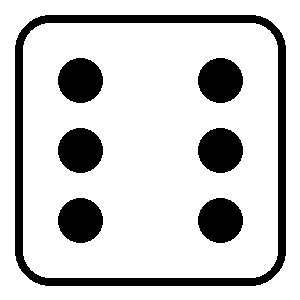
You will make a button that rolls a random number from 1 to 6. The number and dice picture will change together.
- ☐ Open the starter project
- ☐ Add a heading and picture
- ☐ Add a button and message
- ☐ Make a random number
- ☐ Change the dice picture
- ☐ Improve the design
Download and Extract the Project
Download Project Pack1. Find the ZIP
Look in your Downloads folder for dice-game-pack.zip.
2. Extract it
Windows: right-click the ZIP and choose Extract All.
Ubuntu/Linux: right-click the ZIP and choose Extract Here.
Do not edit files while they are still inside the ZIP.
3. Open the real project folder
dice-game
├── index.html
└── img
    ├── 1.png
    ├── 2.png
    ├── 3.png
    ├── 4.png
    ├── 5.png
    └── 6.png
Open the dice-game folder in VS Code.
The Rule for Every Step
- Read what the new code does.
- Add only the new part.
- Press Ctrl + S.
- Return to the browser.
- Press Ctrl + R.
- Check what changed.
Open the Starter Page
Open index.html in VS Code. It already contains the basic page:
<!DOCTYPE html>
<html lang="en">
<head>
    <meta charset="UTF-8">
    <meta name="viewport" content="width=device-width, initial-scale=1.0">
    <title>My Dice Game</title>
</head>
<body>

</body>
</html>
Double-click index.html to open it in the browser. A blank page is correct.
Add a Heading
Put this inside <body>
<h1>My Dice Game</h1><h1> makes a large heading.
Save and refresh. Can you see the heading?
Mini Challenge: Make It Yours
Change the words inside the heading. For example:
<h1>Super Dice Roller</h1>Show a Dice Picture
Put this under the heading
<img src="img/1.png" alt="dice">src tells the browser where the picture is.
img/1.png means: open the img folder and find 1.png.
Save and refresh. You should see dice face 1.
Mini Challenge: Test the Image Path
Change 1.png to 2.png, 4.png or 6.png.
Save and refresh after each change.
Give the Picture a Name
Change the image to:
<img id="dice" src="img/1.png" alt="dice">The ID dice is a name for this picture. JavaScript will use that name later.
Add the Button and Message
Put this under the image
<br><br>

<button>Roll the Dice</button>

<p id="result">Press the button!</p>
The button does not work yet. That is correct.
The paragraph has the ID result, so JavaScript can change its words later.
Save and refresh. You should see the button and message.
Add Simple CSS
Put this inside <head>
<style>
    body {
        text-align: center;
        background-color: lightblue;
        font-family: Arial;
    }

    #dice {
        width: 150px;
    }

    button {
        font-size: 20px;
        padding: 10px;
    }
</style>
text-align moves the content to the centre.
background-color changes the page colour.
width changes the dice size.
padding adds space inside the button.
Mini Challenge: Change One Value
Try one change at a time:
background-color: lightgreen;width: 220px;padding: 20px;Save and refresh after every change.
Make the Button Run a Function
Change the button to:
<button onclick="rollDice()">Roll the Dice</button>onclick means: when the button is clicked, run the function called rollDice.
Put this just before </body>
<script>
    function rollDice() {

    }
</script>
A function is a group of instructions. It is empty for now.
How Random Numbers Work
You can use the finished dice formula later, but this section shows how it is built.
Math.random()This makes a random decimal number starting at 0 and smaller than 1.
Examples: 0.18, 0.62, 0.999.
Math.random() * 6This stretches the possible numbers from 0–1 to 0–6.
Examples: 0.72, 3.48, 5.91.
Math.floor(Math.random() * 6)Math.floor() rounds down to a whole number.
Math.floor(4.9) becomes 4.
Now the possible answers are 0, 1, 2, 3, 4, 5.
Math.floor(Math.random() * 6) + 1Adding 1 changes the possible answers to 1, 2, 3, 4, 5, 6.
Make and Show the Random Number
Put these lines inside rollDice()
let diceNumber = Math.floor(Math.random() * 6) + 1;

document.getElementById("result").innerText =
    "You rolled a " + diceNumber;
The first line makes the random number.
The second instruction finds id="result" and changes the words inside it.
Save, refresh and press the button many times. Do not continue until the number changes.
Change the Dice Picture
Add this under the result line, inside rollDice()
document.getElementById("dice").src =
    "img/" + diceNumber + ".png";
If the random number is 4, the image path becomes img/4.png.
Save and refresh. Check that the number and picture match.
Your Main Game Is Finished
Your function should now look like this:
function rollDice() {
    let diceNumber = Math.floor(Math.random() * 6) + 1;

    document.getElementById("result").innerText =
        "You rolled a " + diceNumber;

    document.getElementById("dice").src =
        "img/" + diceNumber + ".png";
}
Important CSS Rule
If you already have a button { } rule, add new button styles inside it.
Preferred:
button {
    font-size: 20px;
    padding: 10px;
    background-color: royalblue;
    color: white;
}
Do not keep making more and more separate button { } rules. It becomes hard to read.
A different selector, such as button:hover or #result, needs its own rule.
Make the Game Look Polished
Add one group at a time. Save and refresh after each group.
Improve the page
Add these lines inside the existing body rule:
background: linear-gradient(lightblue, white);
min-height: 100vh;
Improve the button
Add these lines inside the existing button rule:
background-color: royalblue;
color: white;
border: none;
border-radius: 10px;
font-weight: bold;
cursor: pointer;
Add a hover effect
This needs a new rule:
button:hover {
    background-color: darkblue;
}
Improve the result
This needs a new rule:
#result {
    font-size: 24px;
    font-weight: bold;
}
Improve the dice
Add these lines inside the existing #dice rule:
margin: 20px;
border-radius: 20px;
Add a button shadow
Add this inside the existing button rule:
box-shadow: 3px 4px 10px gray;Big Design Bonus: Put the Game in a Card
Wrap the game parts inside:
<div class="game">
    <h1>My Dice Game</h1>
    <img id="dice" src="img/1.png" alt="dice">
    <br><br>
    <button onclick="rollDice()">Roll the Dice</button>
    <p id="result">Press the button!</p>
</div>
Then add this new CSS rule:
.game {
    background-color: white;
    width: 400px;
    max-width: 90%;
    margin: 50px auto;
    padding: 30px;
    border-radius: 20px;
    box-shadow: 0 8px 20px gray;
}
Common Mistakes
- Nothing changed: save the file and refresh the browser.
- Broken image: check that the
imgfolder is next toindex.html. - Button does nothing: check that the button says
onclick="rollDice()". - JavaScript error: check quotation marks, brackets and semicolons.
- Random line does not work: make sure it is inside
rollDice(). - Wrong picture: check that the files are named exactly
1.pngto6.png.
Final Personalisation Challenge
Change at least three things so your game is not identical to everyone else’s:
- Change the title.
- Change the page background.
- Change the button colour.
- Change the dice size.
- Change the result message.
- Add a shadow or hover effect.
Show the Teacher
- ☐ The button works
- ☐ The result is 1–6
- ☐ The picture matches
- ☐ I changed the design
- ☐ I can explain one line
- ☐ I tested it many times